Strip C2PA From Photoshop & Lightroom
Last updated:
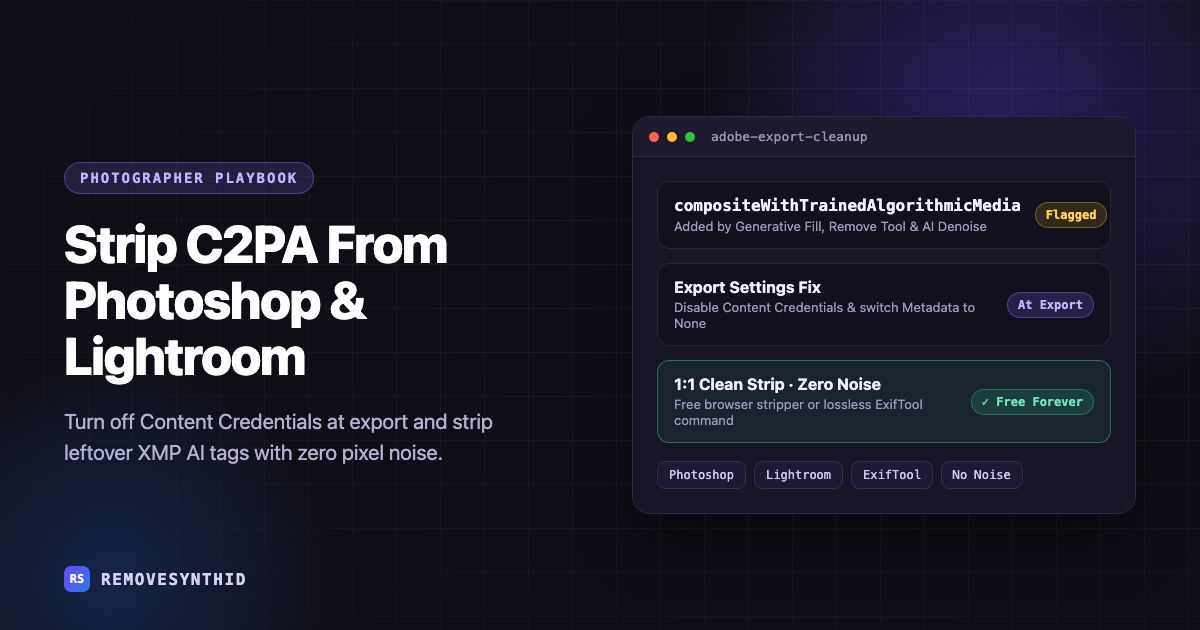
Nothing frustrates a photographer or retoucher faster than spending hours shooting on location, cleaning up one distraction with Photoshop’s Remove Tool or Lightroom’s AI Denoise, and watching social platforms stamp the final photo with an “AI Info” badge. This guide explains exactly what Adobe writes into your exported JPEGs and PNGs, how to turn it off at export, and how to strip residual C2PA/XMP headers cleanly without degrading image quality.
Which Photoshop and Lightroom tools inject AI provenance tags
Adobe is a founding member of the Content Authenticity Initiative (CAI) and C2PA, so Creative Cloud embeds provenance metadata far more thoroughly than most editors realize. Importantly, two separate metadata layers can trigger social-media AI labels: signed C2PA Content Credentials (stored in JPEG APP11 / PNG caBX boxes) and unsigned IPTC/XMP metadata fields.
| Adobe Feature Used | Metadata Written on Export | Triggers “AI Info” on Instagram / TikTok? |
|---|---|---|
| Photoshop Generative Fill / Generative Expand | C2PA manifest (when enabled) + compositeWithTrainedAlgorithmicMedia assertion + XMP history | Frequently yes — even for tiny background extensions or object removals |
| Photoshop Remove Tool (AI mode) | May record generative edit assertion in Content Credentials / XMP metadata | Can trigger automated metadata checks if credentials or XMP tags remain |
| Lightroom Classic / CC AI Denoise & Generative Remove | Writes AI processing tags into XMP metadata when exported with full metadata | Reported by photographers when exporting with “All Metadata” included |
| Standard exposure, curves, crop & color grading | Standard EXIF/XMP camera and software tags (no trainedAlgorithmicMedia assertion) | No — unless the source RAW/JPEG already carried a camera C2PA manifest or earlier AI edit |
How to disable Content Credentials inside Photoshop & Lightroom
If you want clean exports straight out of Adobe Creative Cloud for client handoffs or social publishing, check these export settings first:
- Photoshop — Disable globally: Open Settings/Preferences → History & Content Credentials (or Window → Content Credentials), and turn off “Enable Content Credentials” for documents where you do not want a signed edit chain attached.
- Photoshop — Export As (File → Export → Export As): Under Metadata, switch from “All” to “None” (or “Copyright and Contact Info” only) and make sure the “Content Credentials (Beta)” checkbox is unchecked.
- Photoshop — Save for Web (Legacy): Set Metadata to “None” or “Copyright” — Save for Web strips JUMBF C2PA containers and heavy XMP edit histories reliably.
- Lightroom Classic — Export dialog: Scroll to the Metadata section and choose “Copyright Only” instead of “All Metadata,” and uncheck “Write Keywords as Lightroom Hierarchy” if you do not need keyword tags traveling with the file.
- Lightroom (Cloud / Mobile): In Export Settings → More Options → Metadata, uncheck Camera Info, Location Info and any Content Credentials option before exporting.
Why exports can STILL get flagged even when Content Credentials are off
Many photographers turn off Content Credentials in Photoshop and are baffled when a file still gets flagged. Three subtle edge cases explain almost every leftover trigger:
- “Save a Copy” preserves existing XMP packets: Using File → Save a Copy to JPEG/PNG often copies forward XMP DigitalSourceType fields or Photoshop edit history that were already written into the PSD/TIFF.
- Layered smart objects & stock ingredients: Pasting a single Adobe Firefly or Stock AI element into a real photo PSD can embed ingredient provenance that travels into the flattened export.
- Camera-signed C2PA files: Newer Leica (M11-P), Sony and Nikon bodies can embed hardware C2PA manifests straight from the camera; once retouched in Photoshop, the manifest chain combines camera capture with AI edit assertions.
Two clean ways to strip C2PA & XMP from finished exports (no pixel noise)
If you already exported a folder of JPEGs or PNGs — or you received retouched assets from an agency — you do not need to re-open every PSD in Photoshop or pay credits for a pixel-distorting SynthID remover. Real photographs retouched in Adobe apps do not contain Google’s invisible SynthID signal, so you should ONLY strip the metadata layer:
- Option A — Free browser strip (/c2pa-remover): Drop up to 10 PNG, JPG or WebP files into our dedicated C2PA Remover. It runs a pure 1:1 original-dimension canvas re-encode in your browser with zero scaling, zero synthetic noise, zero uploads and zero credits (no sign-in required). PNG stays lossless; JPEG/WebP re-encodes at 0.94 quality.
- Option B — Desktop CLI with ExifTool (best for lossless JPEG byte-stripping of hundreds of photos): Install ExifTool and run `exiftool -all= -tagsFromFile @ -ColorSpaceTags -ICC_Profile -overwrite_original folder/` to strip C2PA JUMBF boxes and XMP AI tags while preserving your exact ICC color profile (sRGB / Display P3) without re-compressing JPEG pixels.
- Why screenshots are the worst option: Taking a screenshot drops C2PA, but it discards color profiles, downscales resolution to your display size, and introduces banding.
30-second verification checklist before delivering or posting
Before handing files to a client or scheduling an Instagram Carousel, verify that no hidden provenance tags slipped through:
- 1. Drop a sample export into our local detector (/synthid-detector) and confirm both C2PA / Content Credentials and EXIF / XMP AI tags read Clean.
- 2. Optionally check the same file on the official Content Credentials Verify portal (verify.contentauthenticity.org) — it should report “No Content Credential found.”
- 3. Spot-check color accuracy (sRGB) and sharpness at 100% zoom, especially if you converted from Adobe RGB or ProPhoto RGB during export.
- 4. Archive your original PSD/RAW separately so you always retain full proof of authorship and camera capture if a client or platform ever asks for original files.
Strip C2PA from Photoshop exports free
Pure 1:1 browser re-encode with zero pixel noise, no sign-in and no uploads — built for clean metadata removal.