Gemini Watermark vs SynthID Explained
Last updated:
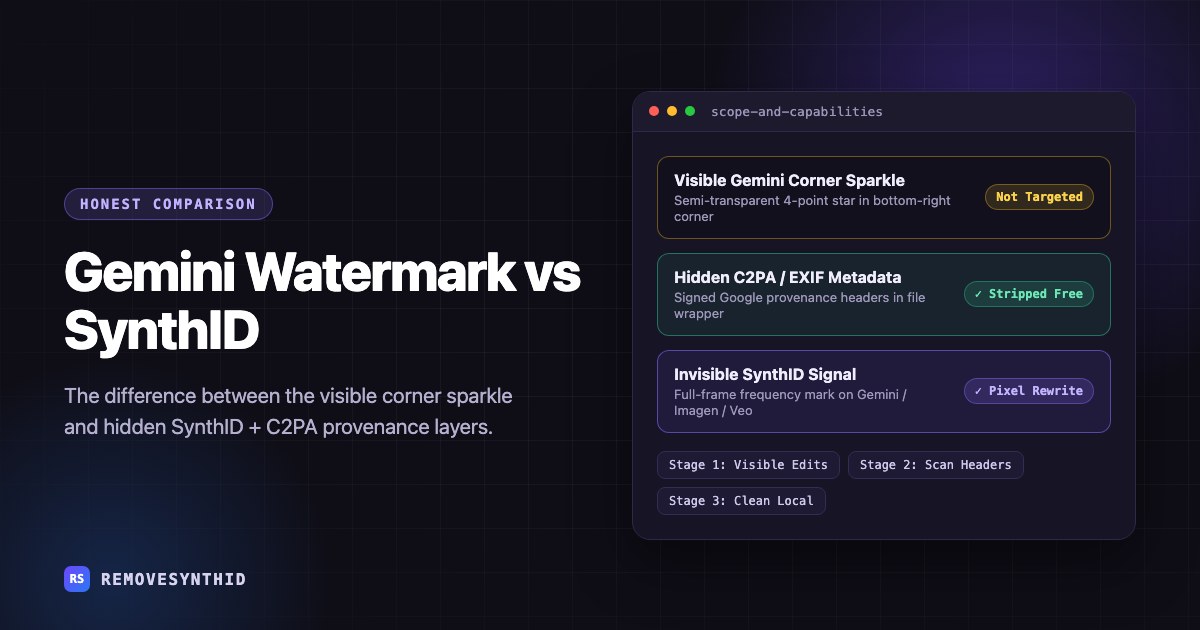
When people search for a “Gemini watermark remover,” they usually mean one of two completely different things: the visible four-point sparkle badge sitting in the bottom-right corner of Gemini images, or the invisible SynthID and C2PA provenance signals hidden inside the file. This guide explains the exact difference — and states clearly what RemoveSynthID can and cannot remove.
The three watermark layers Google attaches to Gemini media
Google’s image and video ecosystem (Gemini app, Imagen 3/4, Nano Banana models and Veo) does not rely on a single mark. Depending on which surface and tier you used to generate the file, a single download can carry up to three distinct layers.
Knowing which layer is bothering you saves time and prevents you from paying for the wrong type of tool.
| Layer | What It Looks Like | Why It Exists | Handled by RemoveSynthID? |
|---|---|---|---|
| 1. Visible Gemini sparkle badge | Semi-transparent 4-point star logo in the bottom-right corner (or “Veo” corner mark on videos) | Immediate visual cue to human viewers that the asset came from Gemini / Veo | No — our tool does NOT erase or inpaint visible corner logos |
| 2. C2PA / EXIF / XMP metadata | Invisible header data (JUMBF box, DigitalSourceType, generator name) | Machine-readable provenance read by Instagram, TikTok and Content Credentials verifiers | Yes — 100% deterministic removal (free forever on /c2pa-remover) |
| 3. Invisible SynthID signal | Invisible frequency-domain pattern distributed across all pixels or frames | Robust AI watermark built by DeepMind to survive crops, resizing and metadata stripping | Yes — pixel/frame rewrite pass in your browser (first image free) |
Why RemoveSynthID does NOT erase the visible Gemini corner star
We want to be completely transparent before you spend a single credit or use your free image removal: RemoveSynthID is an invisible-watermark and metadata tool, NOT a visible logo eraser or AI inpainting tool.
If you upload a Gemini image with a visible white four-point star in the bottom-right corner and run our cleaner, the C2PA metadata will be stripped and the invisible frequency layer will be rewritten — but the visible sparkle star in the corner will still be there at full clarity.
Why? Removing a visible corner overlay cleanly requires either mathematical reverse alpha-blending (matched precisely to the exact corner mask and alpha curve Google used for that image resolution) or local pixel inpainting. Our engine intentionally avoids altering visible artwork features so that your original visual details stay untouched.
- Do NOT use credits here expecting a visible corner logo to vanish — you will be disappointed.
- If your only goal is removing the visible corner sparkle on images you own, look for either an official clean-export option in your Google AI / Vertex AI plan, a dedicated reverse-alpha-blend utility, or manual retouching/cropping in Photoshop or Photopea.
- Once the visible badge is handled (or if your Gemini / Vertex AI output has no visible badge), come back here to inspect and clean the hidden C2PA metadata and invisible SynthID layer.
Why removing the visible corner logo still leaves SynthID and C2PA intact
The flip side trips up just as many creators: they crop off the bottom-right corner or use a visible watermark eraser to wipe away the Gemini star, assume the image is now clean, and still see an “AI Info” label appear when they post it.
That happens because cropping a corner or inpainting a 96×96 pixel patch leaves two hidden layers completely untouched:
- C2PA & XMP headers: Unless your editing tool discards ancillary metadata chunks on export, the signed Google / Gemini provenance record rides straight along with the edited file.
- Full-frame SynthID: SynthID is distributed across the entire image canvas, not concentrated under the visible logo. Even cropping 20% off the bottom edge leaves the invisible signal detectable across the remaining 80% of the picture.
Recommended two-stage workflow for your own Gemini assets
If you generated artwork with Gemini, Nano Banana or Veo and want full control over both visible presentation and hidden file provenance, follow this order — the order matters:
- Stage 1 (Visible edits first): Do any cropping, layout framing, color grading, or visible badge retouching in your preferred image/video editor first. Keep your raw original archived separately.
- Stage 2 (Inspect headers): Drop your finished export into our free local detector (/synthid-detector) to see whether C2PA, XMP AI tags, or Gemini generator strings survived your editor export.
- Stage 3 (Clean invisible layers last): If you only need C2PA/EXIF metadata gone, use the free /c2pa-remover. If you also want the pixel-level rewrite pass for SynthID, run the full remover on the home page (images/audio) or /remove-synthid-from-video (short clips) as your final step before publishing.
What about Nano Banana Pro, Imagen and Veo exports?
Across Google’s newer image and video releases — including Imagen 3/4, Gemini native image generation (commonly nicknamed Nano Banana / Nano Banana Pro) and Veo video models — Google applies SynthID as a baseline invisible layer and attaches C2PA Content Credentials on supported surfaces.
For still images exported from any of those models, our browser detector can read the surviving C2PA and generator strings locally, our free C2PA tool can strip the metadata 1:1, and our full remover rewrites the pixel grid at original resolution. For Veo videos, our browser Video Remover rewrites frames locally and strips container metadata, though note that original audio tracks pass through unchanged.
Check hidden Gemini metadata free
Inspect whether your Gemini or Veo file carries C2PA headers or generator strings — 100% locally in your browser.